Transactions "Exclude from Reports" Stuck on or off

I cannot toggle the option to exclude a transaction from reports or spending plan. I'm less concerned about the spending plan and more concerned about the reports, since I need my Schedule E to be accurate and it's currently missing MANY transactions. It doesn't seem to matter what I do, the Exclude from Reports is either stuck on (which is bad for many transactions) or stuck off. If I click to uncheck Reports, it removes the check, but then immediately adds it back not a second latter. It doesn't matter if I'm in the quick transaction button, or the full edit transaction window.
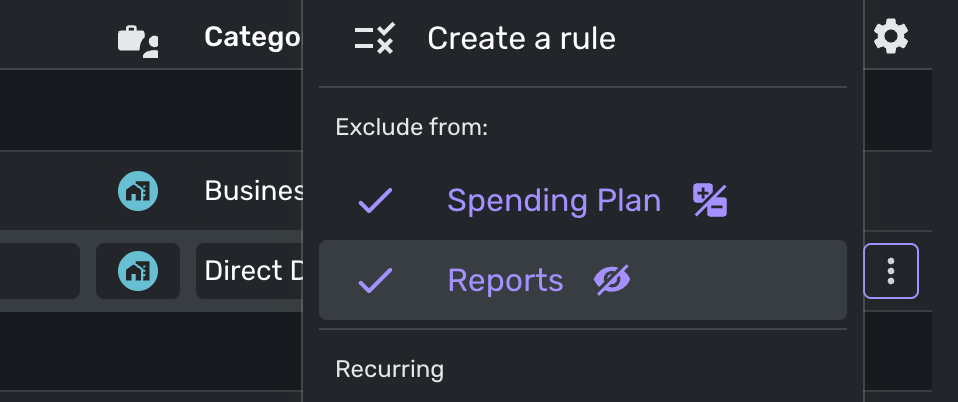
I've tried changing the account types, and nothing seems to make a difference. The only category of accounts that I'm able to toggle reports on/off is under my Personal Credit accounts. I'm not able to perform this function under any of my business, or personal cash & checking accounts. Very frustrating.
Comments
-
Is this on the phone app or the web app? Have you tried it in both places?
If this is a phone app, I would reboot the phone and/or remove the app and reinstall.
Is the account an investment account? If so, you'll have to change type to payment/deposit.
These are off the top of my head? Give us more information if you can.
Steve
Quicken Simplifi (Safari & iOS) Since 2021
Quicken Classic (MacOS) Since 2009
MS Money (1991-2009) and Dollars & Sense (1987-1991)0 -
Thanks Steve. I had the brokerage account selected as a checking account (because that's what I treat it as). I switched it to a brokerage account and now I'm able to change to Payment/Deposit which allowed unchecking the "Exclude from Reports".
When editing multiple transactions, why can't we modify the "Type" so that I can mass change the transactions to "Payment/Deposit" or even create a rule to also change the "Type"?
0 -
Yep, it works better as a brokerage account, but with drawbacks. You cannot link transactions to a recurring and you cannot split transactions. We really need those.
And you are right, we cannot edit mulitple transactions to change them to payment/deposits. We need that too.
Steve
Quicken Simplifi (Safari & iOS) Since 2021
Quicken Classic (MacOS) Since 2009
MS Money (1991-2009) and Dollars & Sense (1987-1991)0 -
-
I was hoping I would be able to mass edit the transactions in excel and re-import the data, but for some silly reason investment/brokerage transactions cannot be exported.
0 -
Thank you for your reply,
There is an Idea post asking for the ability to export/import investment transactions. If you haven't already done so, please take a look and add your vote + a comment:
Ideas that get enough votes may be implemented in the future!
-Coach Kristina
0 -
Is there a CSV template for importing investment transactions that could set the Type to Payment/Deposit field? The example seems to be missing columns.
Date
Payee
Amount
Category
Tags
Notes
Check_No
3/13/20
Starbucks
-7
Coffee Shops
Vacation
0 -
Hello @dollardave,
There is no current import template for Securities and investing Actions. Importing into an investment account will default to the 'Payment/Deposit' Action.
-Coach Jon
1 -
OK, thanks! I think I can make that work then!
1