How to link Transaction to Invoice if not available as an option?

I have an invoice which I want to link to a recent payment/transaction.
When I click APPLY PAYMENT > LINK TO TRANSACTION, the actual transaction I need to link it to is not available in the list presented. If I use the search box, and type the transaction name in, it does not return any results.
So I have no way to force the linking of this payment, even though the transaction has cleared (not pending) and is for the exact invoice amount.
Please advise how to rectify this? Please let me know if you need screenshots or more information? Many thanks!
Best Answer
-
Hello @cloudquick,
Thanks for the screenshots! Let's have you try linking from the transaction itself! First, open the Transaction detail window for the transaction you want to apply the payment to. Then select Clients & Projects, and then select the associated business from that list.
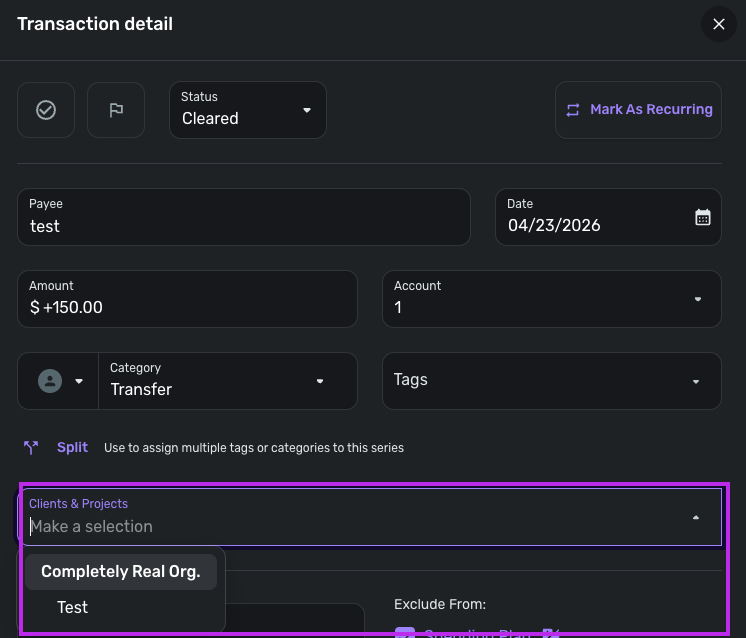
Next, check the Invoice payment checkbox, and then select Update in the bottom right.

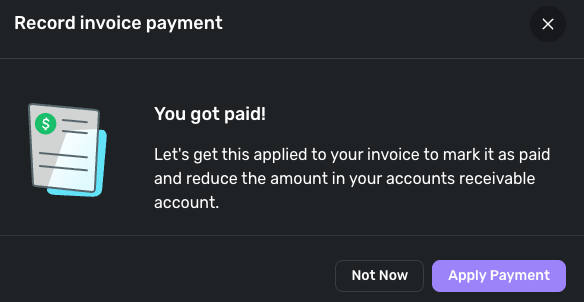
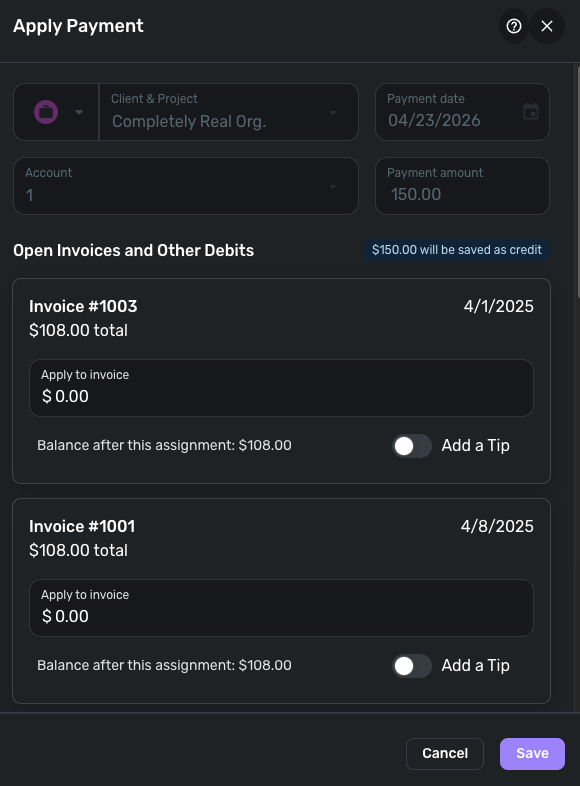
Afterward, select the Apply Payment button in the dialog box that pops up, and then apply the payment to one of your open Invoices.
I hope this information helps!
-Coach Jon
0

Answers
-
Hello @cloudquick,
Thanks for reaching out! I am not sure why the transaction would not be showing up in the Apply Payment list. Can you please supply screenshots of the transaction, invoice, and the Apply Payment window to help us verify what may be occurring here?
-Coach Jon
0 -
Hi @Coach Jon
Here is the transaction. The Zelle deposit is the payment, and you can see above it the pending Invoice:

Here is the "unpaid" invoice:

And here is the "Apply Payment" window:
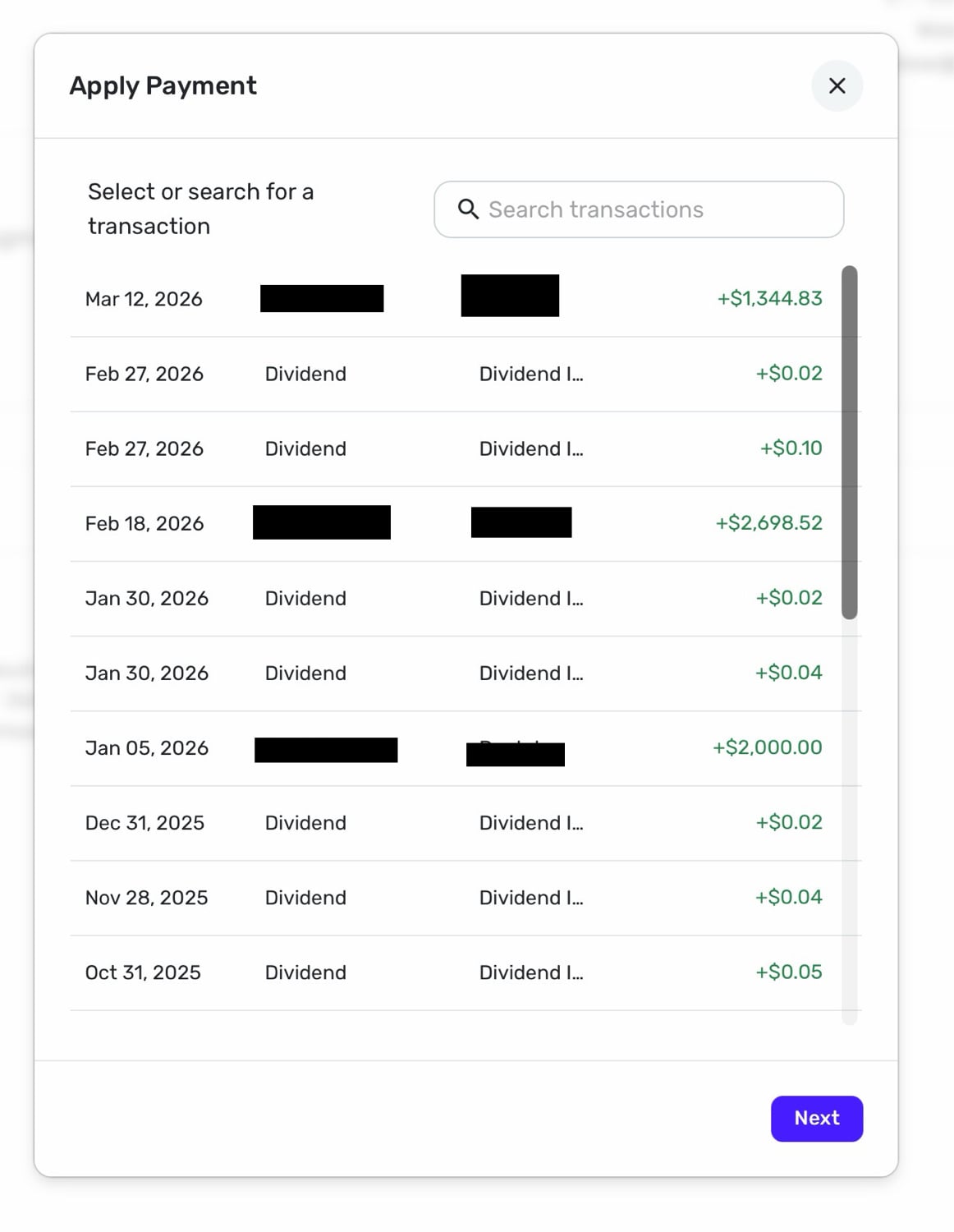
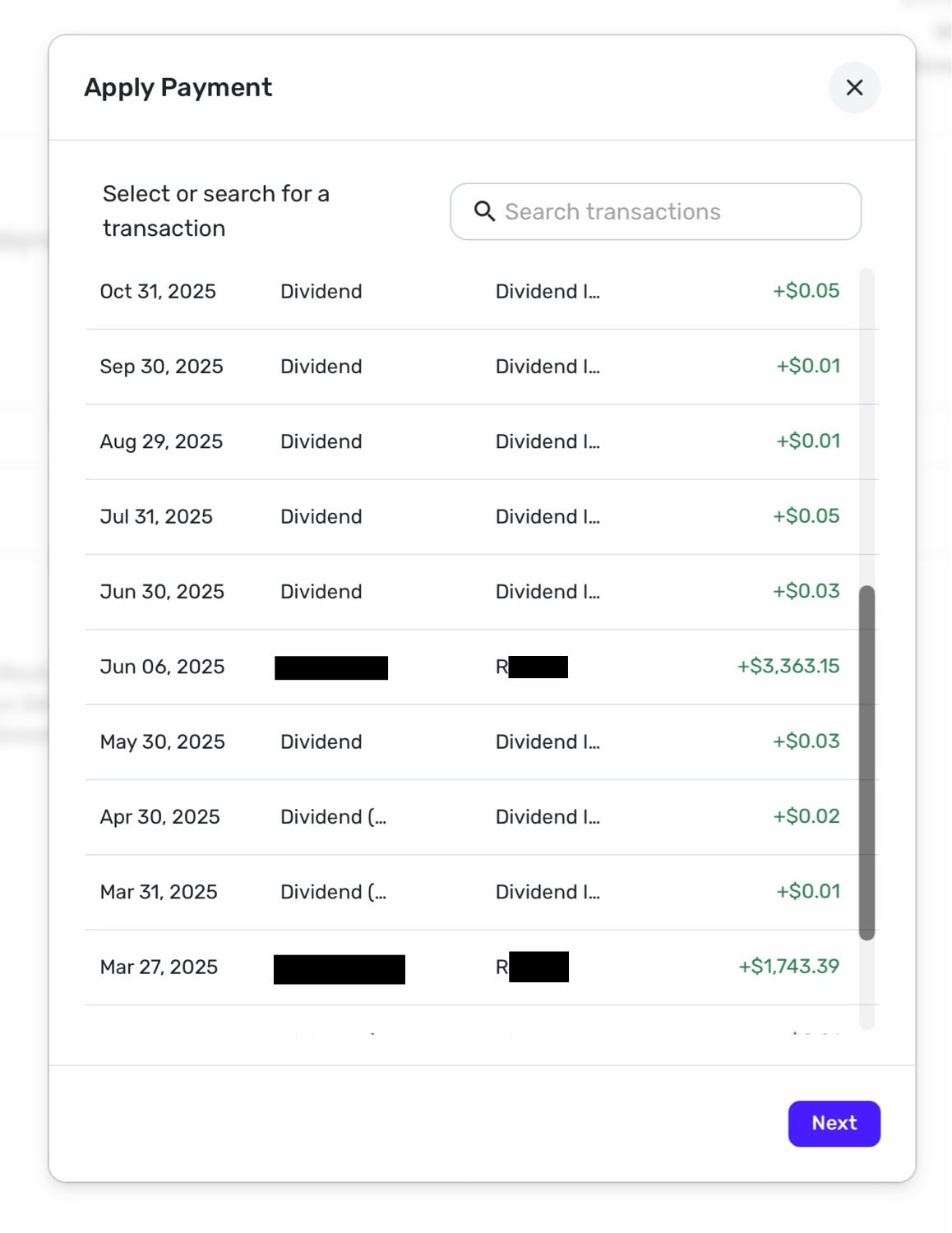
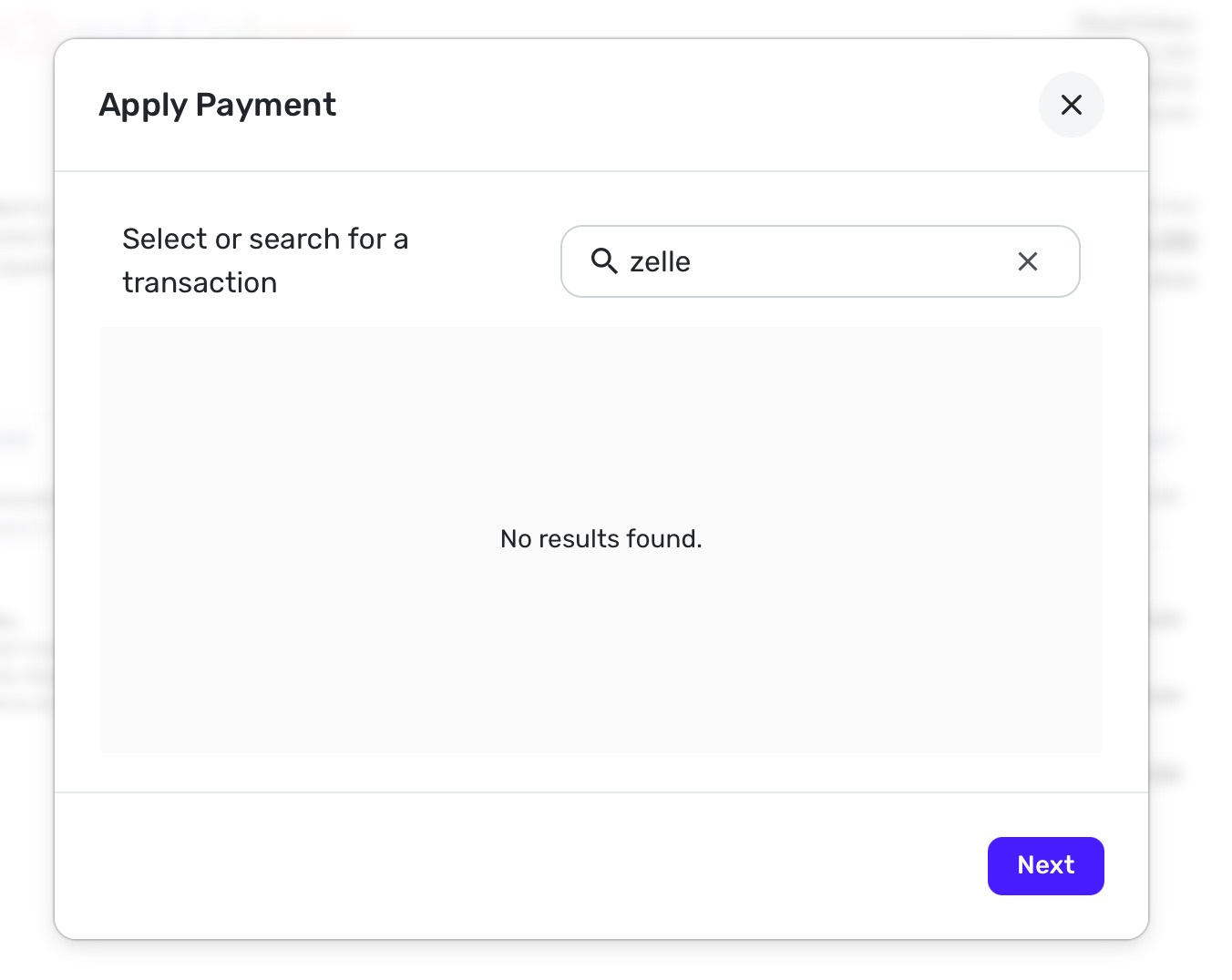
Please let me know if you need anything else? Thanks!
0 -
Hi @Coach Jon thanks for this info.
I have followed the steps in your message. and was able to Apply the payment as described.
However, the invoice is still showing as unpaid in the Invoices tab, and the resulting transactions look like this:
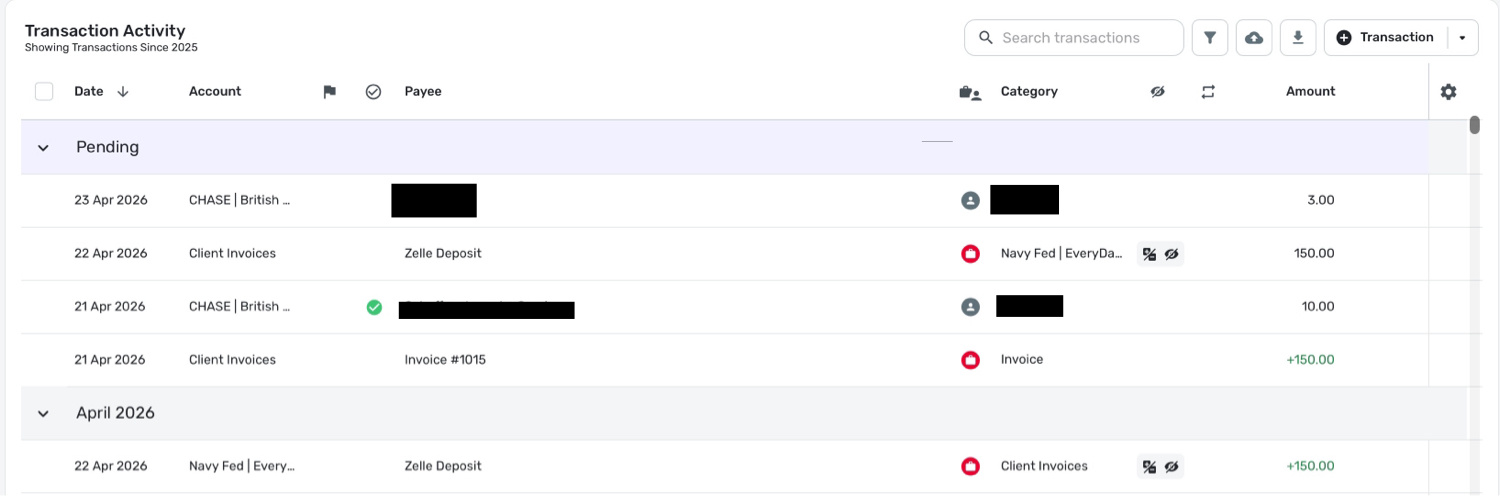
I have been able to apply payments before, and it hasn't gone awry like this, so not sure what's different this time.
0 -
Hello @cloudquick,
I am not sure what happened there, and I could not reproduce the behavior shown in your screenshot above. Can you please supply a screenshot of how the invoice appears now from your end?
You should see a "Paid in full" banner on the Invoice if it has been successfully paid.
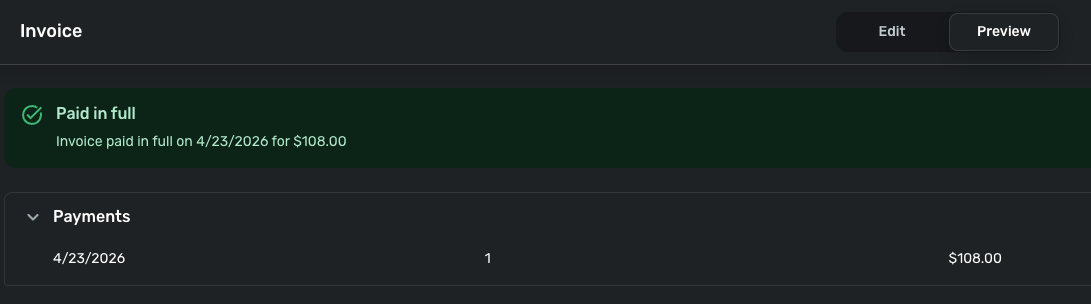
Thanks!
-Coach Jon
0 -
Hi @Coach Jon
So, as mentioned, the Invoice is still showing as unpaid:
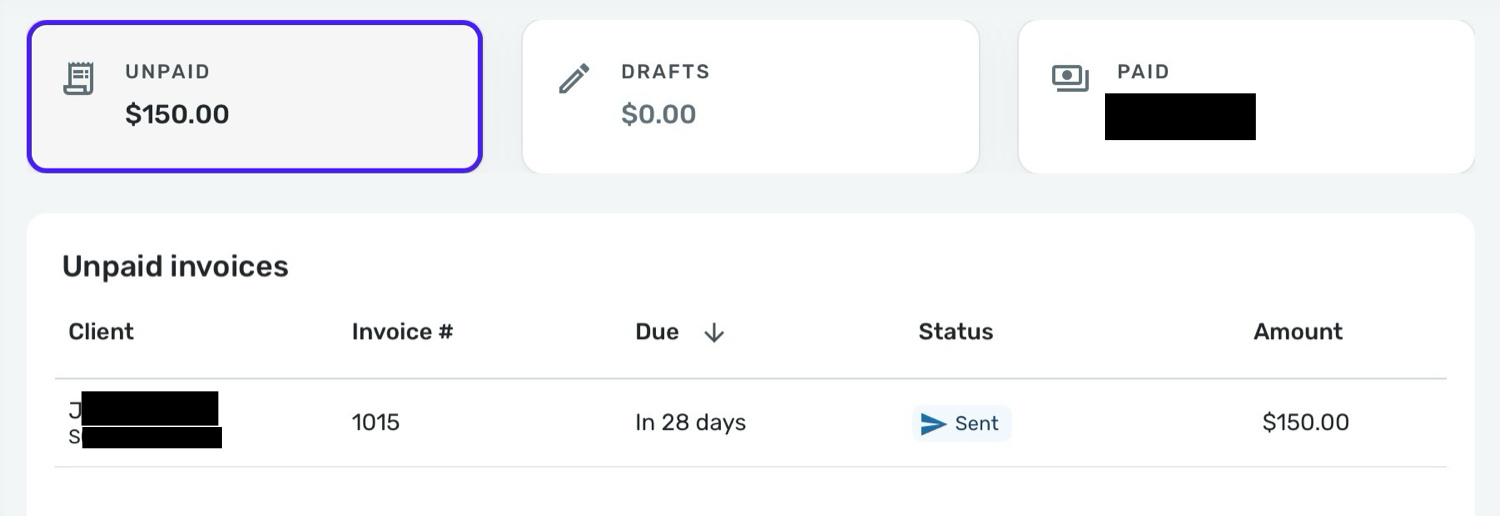
and this is the banner when you view the actual invoice itself:

Is there a different way one is supposed to marry a payment with an invoice? A process that I did not follow?
Thanks
0 -
Hello @cloudquick,
Thank you for the reply. If the steps I sent above were followed exactly, then the invoice should have been marked as paid with a banner like the one I sent above as well. I would see about removing the transaction, recreating it, and then following the steps again to see if it works this time. Let us know!
-Coach Jon
0 -
Hi @Coach Jon - I see that I made an error by not manually entering the payment amount in the box that appears after selecting Client/Project and then hitting "Apply Payment". I have redone this now, and I think it is correct. Apologies about that.
Any idea why the payment wasn't initially available to be applied to the invoice? Will I need to always assign the transaction to a client/project via the transaction dialogue box?
0 -
Hello @cloudquick
I am glad you were able to get that resolved! I wish I could tell you what happened in the first place, but I am not sure myself. You should not always have to do it this way via the transaction itself, but the option is there for cases like this.
Thank you!
-Coach Jon
1