Revising Prior Invoices

I have a client whom I invoice at various intervals, whom I've invoiced 3 times to date.
I issued the first invoice before fully fleshing out supplemental information like defining one or more projects.
The two most recent invoices have a single line item that correctly read Client Name:Project Name. However, the original invoice's line item reads only Client Name, which now is throwing off the amount of work billed to the project in question.
I cannot find a way to edit the data for the first invoice to properly attribute it to the correct project. Any boxes displaying that data are dimmed out. Does a manner exist to make this internal correction?
Any helpful guidance would be much appreciated.
Best Answer
-
Hello @Mortimer Duke,
Thank you for reaching out with this question! To clarify, is it the Client & Project dropdown that you want to edit?
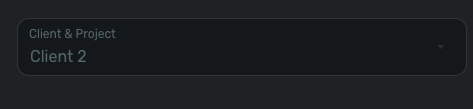
If that is the correct field, then unfortunately, it can't be edited.
There aren't any good workarounds. You could create and add a $0 item that uses the Project name as the item name or add the Project name in the notes section. It's an extremely limited workaround, since it only provides a visual reference when you view the invoice. It wouldn't associate the invoice with that project in reports or anywhere else in Quicken Simplifi.
If you'd like to see the ability to edit the Client & Project field added, I recommend creating an Idea post to request it. Ideas that get enough votes may be implemented in the future! For more information about creating an idea, please review the post linked below:
I hope this helps!
-Coach Kristina
0
