Robinhood Transaction Wrong Sign

Hello,
Some new payment/deposit transactions from my Robinhood account are coming in with the wrong sign. Two new deposits (one from my cashback, and one wire transfer) are in there as expenses rather than positive transactions. Is this a known issue?
Thanks.
Comments
-
Hello @roshankarim,
Thank you for letting us know you're seeing this issue. There are a couple of known issues with Robinhood right now; they might be related to what you're seeing, but those issues would prevent you from connecting and/or updating accounts, rather than cause transactions to download incorrectly. To view the issue with FDP-105 errors, click here. To view the issue with FDP-101 errors, click here.
To help troubleshoot, please provide more information:
- When did you first notice this behavior?
- Are you seeing any error messages/codes?
- Is this affecting all new payment/deposit transactions?
- If not, is there any pattern to the ones that are affected?
If you haven't already done so, I recommend making the account manual, then reconnecting and relinking it. To make the account manual, please follow these instructions from our article on making accounts manual:
- Move your cursor to the top right and click Settings (gear icon).
- Select Accounts.
- Locate the Account you'd like to make "manual" and click the three dots at the end of it.
- Select Make manual.
- Click Make manual to confirm.

Once done, the account will be moved down to the Manual Accounts section.
To reconnect and link the account, please follow these steps from our articles on adding and linking accounts:
- In the Dashboard, click the + New button in the upper right of the Accounts List.
- Type your bank’s name into the search bar.
- If your bank appears under the Popular Financial Institutions section, click on the image.
- Once you've selected your bank, you'll see a message regarding consent. Click Continue.
- Enter the User ID and Password used to sign in to your bank's website, then click Connect.
- Quicken Simplifi locates the accounts associated with your bank's login and displays the account name and account type.
- To exclude an account from the bank, uncheck the box next to its name.
- You can also rename and change the type of account from this screen, or make these changes later in the Settings menu.
- Review the accounts found
You’ll see each account’s:- Account Name
- Account Type
- Open the Action dropdown and choose the existing Quicken Simplifi account that the bank account should link to.
- Important: If you leave the Action set to “Add as New (no link)”, Quicken Simplifi will create a duplicate account.
- Ignore accounts you don’t want to add
If there’s an account you don’t want to connect, simply uncheck the box next to it.

Please let me know how it goes!
-Coach Kristina
0 -
I am getting no errors and have recently tried reconnecting. It does appear to be affecting all transactions. I first noticed it yesterday.
1 -
Thank you for your reply,
To help further investigate the issue, please provide the following information:
- The name of the account the transactions reside in, as it appears in Quicken Simplifi.
- The Date, Payee, and Amount of 3 example transactions the issue is occurring with.
- A screenshot of the Transaction Detail window for each of the provided examples that shows the "Appears on your statement as…" info (this is easiest to obtain from the Web App).
- A screenshot of the same example transactions from the bank's website showing that they're charges and not credits.
- Confirm whether the issue is impacting the balance for the account in Quicken Simplifi.
Note: If you're not comfortable posting that information in the discussion, please send it via DM.
Please send logs. You can do that by following these instructions:
- Log in to the Quicken Simplifi Web App.
- Select the Profile icon in the upper-right corner of the screen.
- With the Profile menu open, hold down the Option key (Mac) or the Alt key (Windows), and then click Send Feedback.
- Leave all boxes checked, add a brief description of the issue, and then click Send.
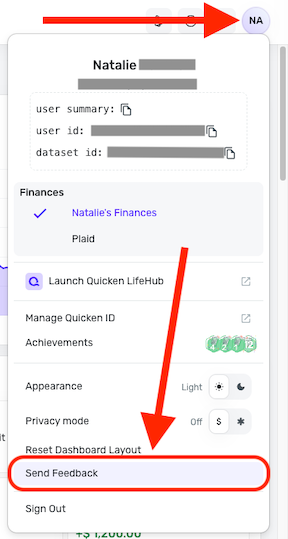
Thank you!
-Coach Kristina
0
